A missing menu bar, a tiny crosshair, Dynamic Input that suddenly disappears: many everyday CAD problems come down to a single system variable. In this first lesson of the free CAD Foundations course, you’ll learn how to find and change CAD system variables from the command line, and which 10 variables are worth knowing from day one.
What are CAD system variables?
System variables are named settings that control how your CAD program looks and behaves. Type the variable name at the command line, enter a new value, and the change takes effect right away. It’s often faster than hunting through dialog boxes, and it’s the quickest way to fix a setting that changed by accident.
10 CAD system variables every user should know
Cursor and selection
- CURSORSIZE sets the size of the crosshair as a percentage of the screen.
- APERTURE sets the size of the object snap target box.
- SELECTIONCYCLING lets you cycle through overlapping objects so you stop picking the wrong one.
- PICKFIRST lets you select objects first and then start a command.
Interface and input
- DYNMODE turns Dynamic Input (the input fields next to your cursor) on or off.
- MENUBAR shows or hides the classic top menu bar.
- RIBBONMINIMIZED controls whether the ribbon is minimized.
Points
- PDMODE sets how point objects are displayed.
- PDSIZE sets the display size of point objects.
Protect your work
- SAVETIME sets the automatic save interval in minutes.
In the video I explain what each variable does and recommend starting values.
Works in AViCAD, AutoCAD and other DWG CAD programs
This lesson was recorded in AViCAD, our AutoCAD alternative. The same system variables work in AutoCAD, progeCAD, BricsCAD and most other DWG-compatible CAD programs.
Next lesson
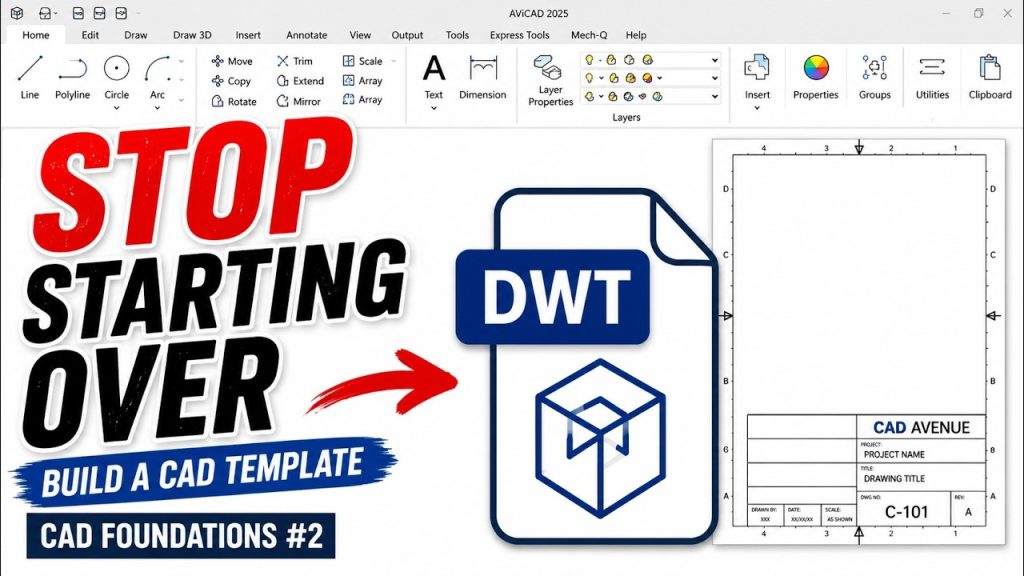
Continue with CAD Foundations #2: Build Your First CAD Template, or see every lesson on the CAD Foundations course page.
Want to follow along in AViCAD? Download a free 30-day trial.