
Getting Started with AViCAD
A simple introduction for engineers, designers, and teams who are new to CAD—or new to AViCAD.
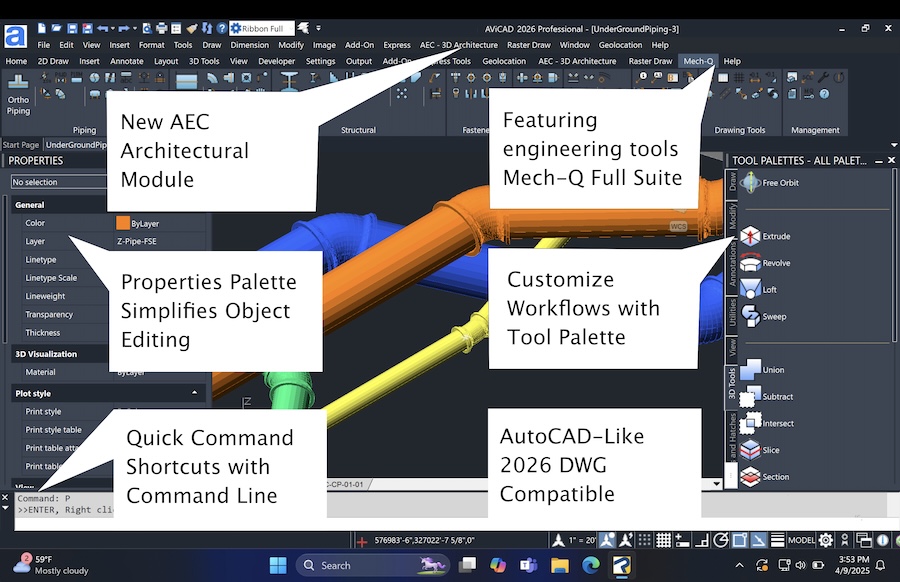
AViCAD is a professional 2D and 3D CAD application that works natively with DWG files and follows a familiar AutoCAD®-style workflow. It’s used by engineers, architects, and CAD teams who want dependable CAD tools without being locked into subscription-only software. If you’re new to CAD—or simply want a smoother way to get started—the sections below walk through the first practical steps most users take.
Many people who try AViCAD understand their industry well but are new to CAD itself. That’s completely normal.
AViCAD is designed so you don’t have to learn everything at once. You can start with a few core ideas, use consistent commands, and build confidence quickly—without getting lost in menus or toolbars.
The short videos below walk through the first steps most new users take when opening AViCAD for the first time.
Frequently Asked Questions (Getting Started)
Do I need prior CAD experience to use AViCAD?
No. Many AViCAD users are new to CAD but experienced in their field. AViCAD is designed to be approachable, with familiar commands and clear prompts that help you learn as you go.
Can I open my existing DWG files right away?
Yes. AViCAD works natively with DWG files, so you can open, edit, and save drawings without conversion or cleanup.
What if I don’t understand scale or plotting yet?
That’s okay. AViCAD supports templates and prepared styles so you can add dimensions, notes, and create PDFs without learning all the theory upfront.
Can I work in both Imperial and Metric units?
Yes. AViCAD supports both Imperial and Metric workflows.
When you start a new drawing, simply choose the correct template (Architectural or Decimal for Imperial, Metric for Metric units), and you’ll be set up correctly from the start.
If you’re using Mech-Q tools, you can also confirm or change units at any time by typing MQCFG in the command line and selecting the appropriate unit system there.
What’s the easiest way to learn without getting overwhelmed?
That’s completely okay. You don’t need to understand scale or plotting to get started in AViCAD.
Focus first on learning the basics—opening drawings, using the command line, drawing accurately, and editing geometry. Once those fundamentals feel comfortable, you can move on to plotting and annotation at your own pace.
When you’re ready, we provide a dedicated video that explains scale, text, dimensions, and plotting using a ready-to-use template—so you don’t have to figure it all out from scratch.
What’s the best way to learn 3D in CAD?
Start with 2D first.
Understanding how to draw accurately on the X and Y axes is the foundation of both 2D and 3D CAD. Creating a simple 2D schematic helps you learn commands, distances, snaps, and editing—skills that carry directly into 3D work.
Once you’re comfortable with 2D input and navigation, moving into 3D becomes much easier. At that point, you can explore our short 3D videos that build on the same concepts using the Z axis and familiar commands.
“Master the basics. Experts are experts because they master the basics.”
Start Here: 4 Short Videos That Cover the Basics
These short videos focus on real first steps, not advanced features. Each one is designed to be watched in just a few minutes.
You’ll see how to:
- Start a new drawing using architectural, decimal, or metric templates
- Choose a beginner-friendly interface without locking yourself into it
- Minimize distractions and maximize your drawing space
- Expand and position the command line for everyday use
1. Opening a Drawing and Setting Up Your Workspace
This first video focuses on one simple goal: getting a clean drawing open and ready to work in.
The key takeaway here is that the command line is the most stable part of CAD. Interfaces change over time, but commands stay the same. Learning to rely on the command line early makes everything else easier.

2. Using the Command Line to Draw Accurately
This video explains why learning core CAD commands early is so important. These commands let you draw faster, stay accurate, and avoid getting slowed down by menus and icons as your projects grow.
You’ll learn how to:
By the end of this video, you’ll understand how CAD uses units, not guesses—whether you’re working in feet, inches, millimeters, or meters.


- Use the command line to activate tools quickly
- Understand why every command must end with Enter
- Turn on Dynamic Input so commands appear at your cursor
- Use Ortho mode (F8) to keep lines straight
- How selection windows work (left-to-right vs right-to-left)
- Common editing commands like Move, Erase, Scale, and Mirror
- How grips and dynamic dimensions help you adjust geometry
- Zoom and Pan commands to navigate without losing your place
3. Editing, Modifying, and Navigating Your Drawing
Once you can draw, the next step is learning how to change what you’ve already drawn.
This video covers:
These are the same editing concepts used across professional CAD software. Once you understand them here, they apply everywhere.

4. Tracing and Producing a Simple Piping Schematic
In this final video, everything comes together in a practical example.
You’ll see how to:
This video shows that you don’t need to be a CAD expert to produce a usable schematic. You only need a small set of repeatable steps.

- Trace existing linework using Mech-Q piping tools
- Place fittings by snapping to geometry
- Finish commands correctly using Enter
- Isolate layers temporarily for cleanup
- Prepare a drawing for plotting or PDF output
- Add basic labels without worrying about scale conversions yet
Helpful Next Steps (Optional but Recommended)
Learn why AViCAD is a practical AutoCAD alternative
If you want a little extra support after the videos, these resources help most new users move faster:
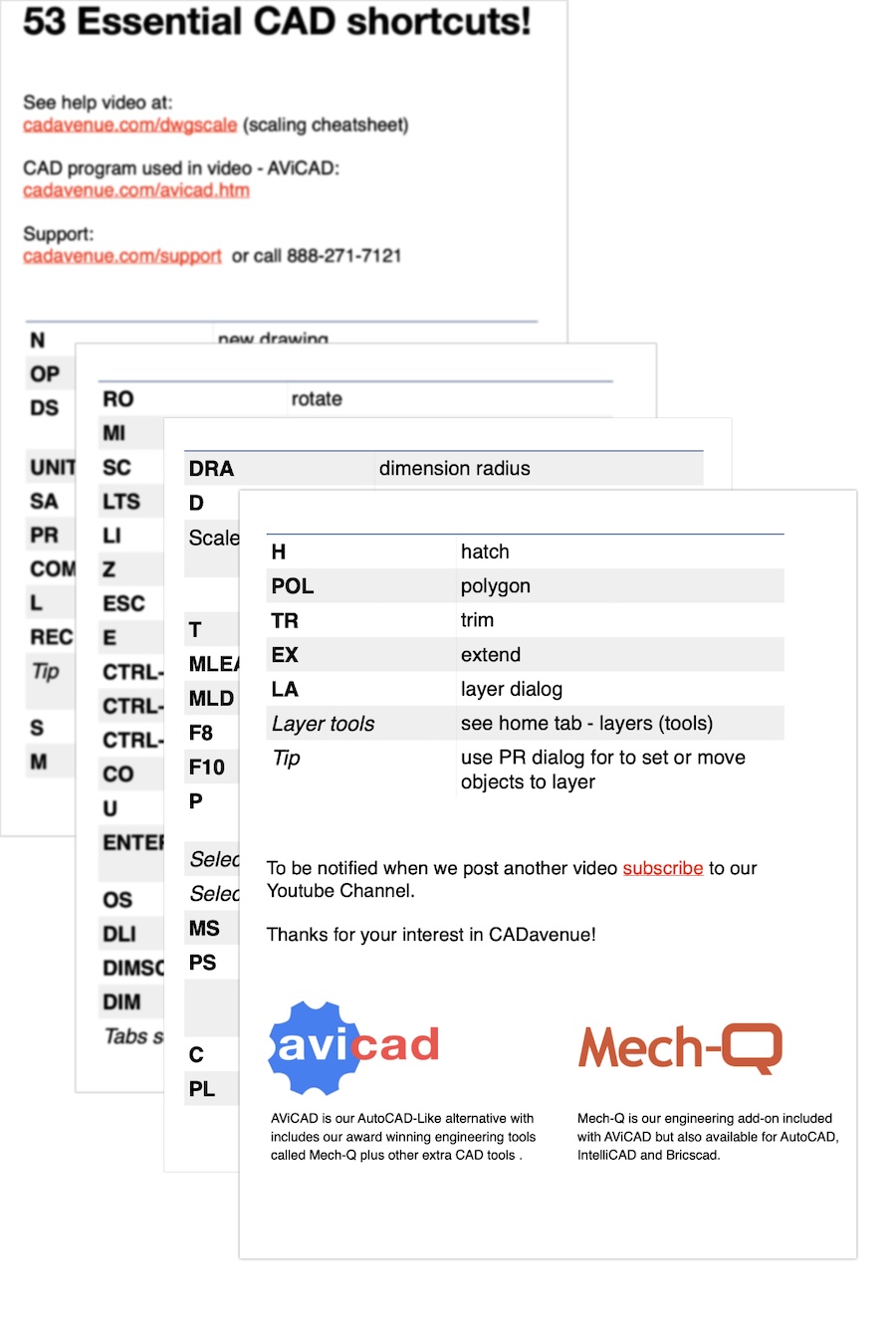
- Download a Command Line Cheat Sheet
A printable reference of common CAD commands you can keep nearby. - Watch the Annotation & Template Video
Covers text sizes, dimensions, and plotting without getting lost in scale math (below) - Explore the Video Library
Short demos, tips, and walkthroughs for both CAD basics and Mech-Q tools. - Learn at Your Own Pace with the Full CAD Course
An optional paid course broken into short lessons (about 10–15 minutes each), designed for busy professionals.

What to Do Next
Once you’ve watched a video or two, the best next step is simply to explore:
- Open a new drawing (try the NEW command)
- Try a few commands (M, RO, E, MI …)
- Add note to a drawing (use the T command)
- Export a quick PDF (PLOT, select PDF as your printer)
You don’t need to master CAD to get started—just take the first small step.
Explore New Features to see what’s included in the latest release.