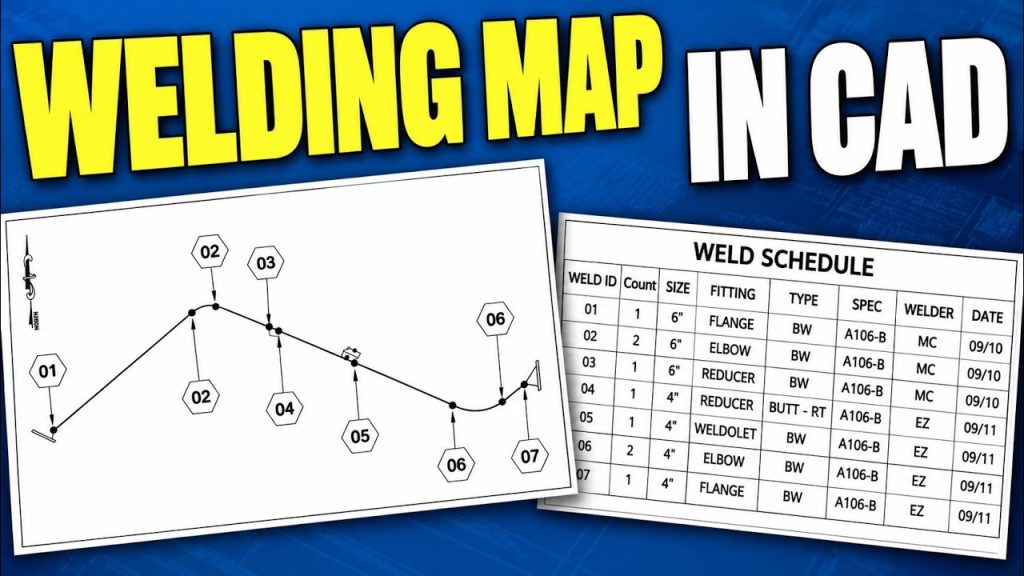
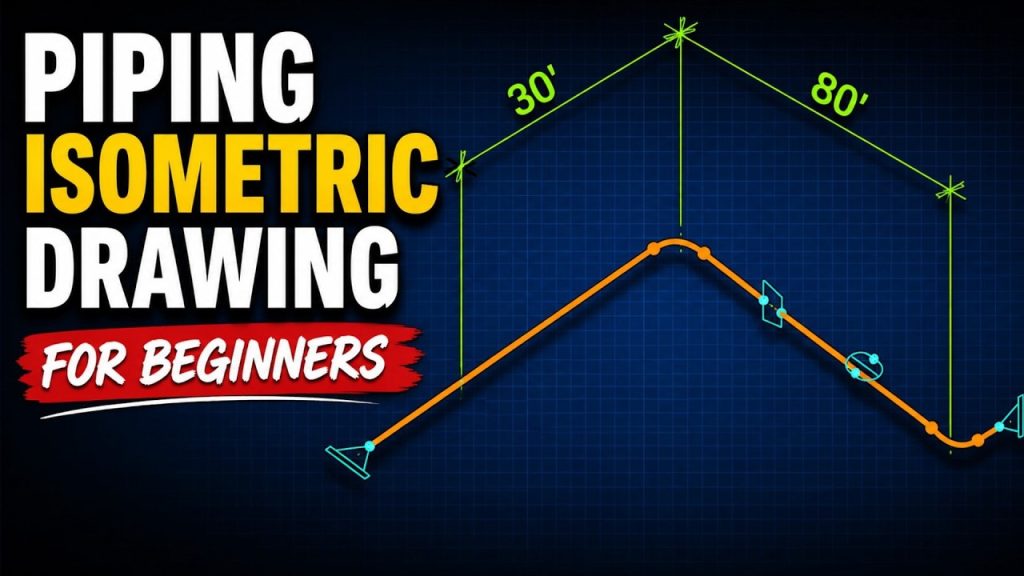
Learn how to create a bill of materials (BOM) for a piping isometric drawing with Data Extraction, and how to add numbered bubbles that match the items in your ISO schedule. It sounds complex, but it’s a simple process, and we take it one step at a time so beginners can follow along. This is lesson 2 of the free Piping Isometric Drawing course.
New to the series? Start with Piping Isometric Drawing for Beginners, where we draw the isometric used in this video.
What you’ll learn
- Bubble pipe and fittings with QBOM
- Create numbered item callouts that match the BOM
- Set up Data Extraction and save it as a reusable template
- Select piping entities and attributes
- Combine identical components and count repeated items
- Sort BOM items numerically, and hide or rearrange columns
- Insert, scale and rename the ISO schedule as a native CAD table
Step 1: Set up QBOM
Type QBOM at the command line. Set the text size (6″ in this drawing), choose whether to tabulate by like items or unique items, and pick numerical labels. You can also change the arrow type before you start.
Step 2: Bubble the pipe runs
Select each piece of pipe and place its bubble. With ORTHO on and ISODRAFT set, the leaders follow the isometric angles. Hold Shift to temporarily release ORTHO when you need a free angle.
Step 3: Bubble the fittings and fasteners
Bubble the flanges, reducer, weldolet and elbows. For flanges, QBOM asks which item to bubble because the fasteners are itemized too; pick one and choose Finish.
Step 4: Run Data Extraction
In AViCAD, use DATAEXTRACTION New; in AutoCAD the command is simply DATAEXTRACTION. Create a new template (named ISO here) so you can reuse it later, then select the entities in the drawing.
Select entities and properties
Turn on Display blocks with attributes and Display entity types. Data Extraction finds the attributes of all the ISO fittings. Turn off the ISO weld, since welds don’t belong in this BOM, and keep only the attribute properties.
Configure and sort the BOM columns
Drag the item column to the far left and click its header to sort it from 1 to 10. Keep the count column and the option that combines identical rows, and hide columns you don’t need (such as quantity, since count covers it) with a right-click.
Step 5: Place and scale the ISO schedule
Insert the table with the default table style, then use QBOM SCALE to scale it to the same 6″ text height used for the bubbles. Finally, rename the table title to ISO Schedule.
Works in AViCAD and AutoCAD
This tutorial uses AViCAD, an AutoCAD alternative. The Data Extraction workflow and commands are the same in AutoCAD. QBOM is part of Mech-Q’s bill of materials tools.
Next lesson: link the BOM to Excel
In AutoCAD Excel Data Link Table, we export this BOM to Excel and link it back into the drawing so the table updates when the spreadsheet changes. See all lessons on the course page.
Want to follow along? Download a free 30-day trial of AViCAD and Mech-Q.