
Complete Layer Control in AViCAD
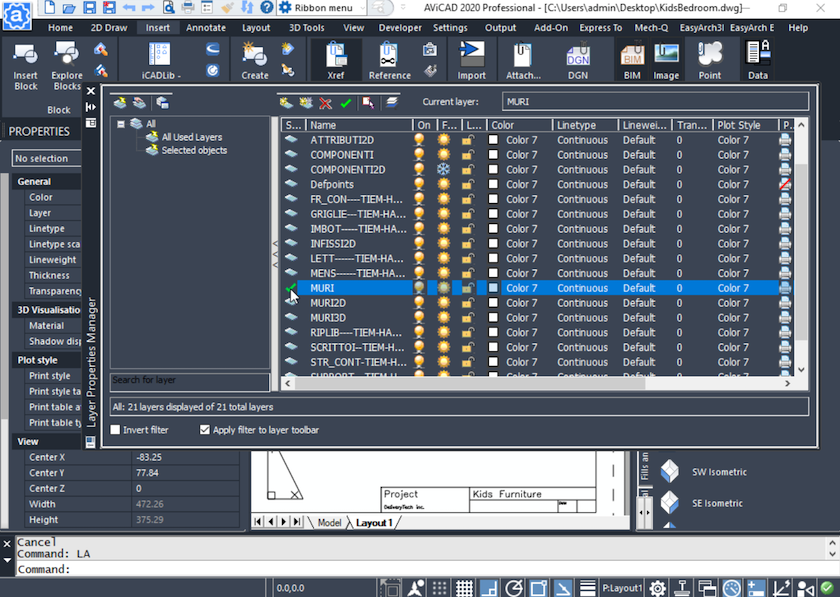
Built-In Layer Management That Works the Way You Expect
AViCAD provides complete, familiar layer control using the same commands, dialogs, and workflows CAD users already know. If you’ve worked in AutoCAD® or AutoCAD LT®, you’ll immediately recognize how layers are created, managed, filtered, and displayed—without learning a new system or adapting to unfamiliar tools.
Layer dialogs behave exactly as expected, allowing you to review, edit, and organize drawings efficiently while maintaining compatibility with DWG-based workflows.
Familiar Commands & Layer Dialogs
AViCAD supports the same layer commands used in AutoCAD-based environments, so existing habits carry over seamlessly.
You can confidently use:
- Standard layer commands and aliases
- Familiar Layer Properties Manager dialogs
- Color, linetype, lineweight, and plot controls
- Freeze, lock, isolate, and visibility controls
Because the command structure and dialogs are familiar, you can focus on drawing and coordination—not relearning basic layer management.
(This is especially helpful when switching from subscription-based CAD to a more affordable CAD platform that preserves established workflows.)
Advanced Layer Filters & Views
AViCAD allows you to organize layers into logical groups using filters and snapshots.
You can:
- Group layers by color, linetype, name, or usage
- Create filtered views for editing or review
- Quickly isolate or restore layer states
- Simplify complex drawings by working in focused views
These tools make it easier to manage large, multi-discipline drawings without duplicating files or manually toggling layers one by one.
Express Tools — Powerful Layer Control on the Fly
AViCAD includes an expanded set of Express Tools, giving you a wide range of productivity commands for working with layers quickly and efficiently.
These tools provide a “smorgasbord” of layer utilities that let you:
- Manipulate layers directly in model space and paper space
- Freeze, thaw, isolate, or restore layers instantly
- Adjust layer states without interrupting your workflow
- Apply changes across multiple viewports efficiently
This level of control is especially valuable when preparing drawings for plotting, coordinating layouts, or cleaning up files received from other CAD platforms.
Designed for Speed, Clarity, and Control
Whether you’re editing a simple layout or coordinating a complex drawing set, AViCAD’s layer tools are designed to help you stay organized, consistent, and productive.
You get:
- Familiar commands
- Recognizable dialogs
- Powerful Express Tools
- Full DWG compatibility
- All without changing how you already work.
Next, explore our 2D and 3D drawing tools
View Next Slide
Or get started now and try AViCAD now
 AViCAD 2027 is now available. Explore new features including faster performance, drawing comparison tools, enhanced GIS capabilities, improved Visual LISP support, and more. See what's new in AViCAD 2027.